Onboarding
Sessions & capacity
Your gym runs on a weekly recurring session schedule. Each session is 2 hours long, runs between 6am and 10pm, and has a defined capacity, pricing, and optional targeting rules. The more precisely you configure your sessions, the better your equipment utilisation and fill rate.
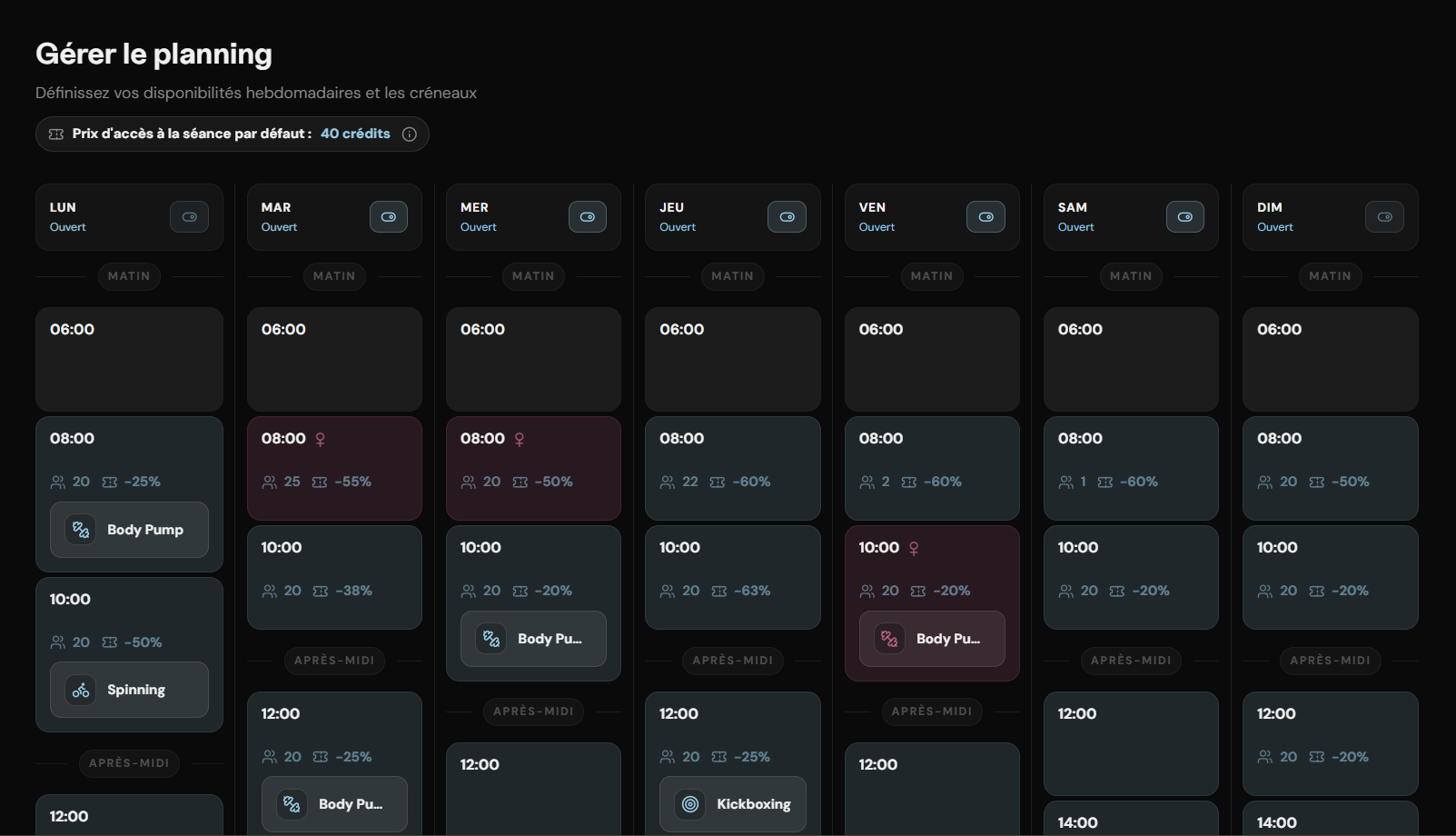
Session fields
| Field | What it controls |
|---|---|
| Day of week | Which day the session repeats each week |
| Start time | Any slot between 6:00am and 8:00pm — sessions run for 2 hours from start time |
| Total slots | Maximum confirmed bookings accepted for this session |
| Discounted slots | Number of slots offered at a reduced token price — only visible to members when set. See pricing rules below. |
| Class type | Optional label shown in the app — e.g. Boxing, Yoga, Open floor |
| Focus filter | Restrict session visibility to members with a matching workout focus. See focus targeting below. |
| Women-only | Restricts bookings to female-identified members for that session |
| Session status | Open or closed. Temporarily close a session without deleting it — only allowed outside the 24-hour lock window |
Session visibility rules
Only sessions with at least one discounted slot configured are visible to members in the app. Sessions without a discount are not shown in the booking list — they exist in your schedule but are invisible to members until a discount is set.
Session with no discount
Not visible to members. The session exists in your schedule and can receive walk-in check-ins, but it does not appear in the app booking list until at least one discounted slot is configured.
Session with discounted slots
Visible to all eligible members. Discounted price shown alongside the standard price. Discount is earned by checking in within the first 60 minutes — late check-ins are charged the standard price.
Session at full capacity
Shown as full. Members can join the waitlist but cannot book. Walk-in check-in is still possible if physical capacity allows — see walk-in policy below.
Walk-in check-in
A member can arrive at your gym and check in to an active session without a prior booking. The app detects the session in progress at your location and allows the check-in directly. They are marked as a walk-in in the session log.
| Check-in type | Token charged | Reliability effect |
|---|---|---|
| Walk-in (no prior booking) | Standard token price — no discount applies | Neutral — walk-ins do not affect reliability score |
| Booked — checked in within 60 min | Discounted price (if session has discount) | Positive — score improves |
| Booked — checked in after 60 min | Standard token price | Positive — score improves |
| Booked — no check-in (no-show) | No tokens charged | Negative — reliability score reduced. See no-show policy below. |
Walk-ins and capacity
Walk-in check-ins are not bound by the session slot limit in the app — they bypass the booking layer entirely. If you want to restrict your gym to booked members only, you can enforce this at the front desk by checking the session list in the Staff app before allowing entry.No-show policy
A member who books a session and does not check in within the 2-hour session window is marked as a no-show automatically when the session closes.
Tokens
No tokens are charged for a no-show. The token hold is released back to the member's balance.
Reliability score
The member's reliability score is reduced. Repeated no-shows compound the penalty and can restrict their access to popular sessions across the entire platform — not just your gym.
Active bookings
If a member accumulates a no-show, all their other upcoming bookings across the platform are automatically cancelled. They must re-book once the penalty period is cleared. This protects session slots for members who reliably attend.
Your gym's revenue
No-shows do not generate a credit for your gym. The slot was occupied on paper but not in reality. The reliability system exists to reduce this — members who no-show repeatedly lose access before they can waste another slot.Focus targeting
Each session can be restricted to members who have declared a matching workout focus — chest, legs, back, cardio, full body, and so on. When a focus filter is set, the session is invisible to members whose selected focus does not match.
This feature exists to help you optimise equipment usage. A session limited to members planning a chest workout means your bench press stations and cable machines are in demand at the right time — not competing with members who came for cardio. Better equipment match means better experience for members and a gym running closer to its actual capacity.
Why this makes you more profitable
A gym that runs at optimal equipment utilisation — the right members at the right stations at the right time — can accommodate more members per session without feeling crowded. Focus targeting is the mechanism that makes that possible.Discount pricing & check-in timing
Discounted slots should be set based on your expected congestion at a given session time. Low-demand slots — early morning, midday — benefit most from discount pricing to improve fill rate. Peak-hour sessions typically do not need discounts.
The discount is not guaranteed to every member who books a discounted slot. It is earned by arriving on time:
| Check-in timing | Token charged |
|---|---|
| Within the first 60 minutes of session start | Discounted token price |
| After 60 minutes from session start | Standard token price — discount is forfeited |
| No check-in (no-show) | Standard token price charged as no-show penalty |
How members see this
Members who booked a discounted slot are shown the arrival deadline in the app before and during the session. If they check in late, the app notifies them that the standard price was applied. There is no dispute process for late check-ins — the timing is logged automatically.Capacity changes & the 24-hour lock
To protect members who have already booked, the following actions are blocked within 24 hours of a session's start time:
Increasing the token price
Members booked at the price shown at booking time. That price is locked for existing bookings.
Reducing the number of slots
Existing bookings cannot be invalidated by a capacity reduction inside the lock window.
Closing the session
Closing a session with existing bookings cancels all those bookings automatically. Members are notified and their token holds released. This action is blocked within 24 hours — contact us if an emergency closure is needed.
Removing the discount
Removing a discount from a session that has existing discounted bookings cancels all those bookings. Members are notified. This action is blocked within 24 hours to prevent last-minute pricing surprises.
Closing a full day that has bookings
Any day containing at least one session with confirmed bookings is locked from closure until those sessions have passed.
Changes allowed outside the 24-hour window — but with automatic booking consequences:
Switching a session to women-only
Allowed outside the 24-hour window. All existing bookings from male members are cancelled automatically. Those members are notified and their token holds released. Female member bookings are unaffected.
Raising the discounted token price
Allowed outside the 24-hour window. Raising the discount price cancels all existing bookings for that session. Members are notified and token holds released. They can re-book at the new price.
Closing a session or removing its discount
Allowed outside the 24-hour window. All existing bookings for that session are cancelled automatically. Members are notified and token holds released.
Changes to capacity, timing, or class type that are requested outside the 24-hour window take effect from the next applicable date — never retroactively. Members with existing bookings are not affected by the change.
Pending changes
All schedule update requests enter a pending state and are applied from the next applicable date. You receive a confirmation before any change goes live.Waitlist & slot increases
When a session fills up, members can join a waitlist with one tap. Promotion from the waitlist happens automatically when a slot opens — no action required from you or from them.
When you increase capacity on a session that has an active waitlist, the newly created slots are filled automatically from the waitlist before becoming open to new bookings. Promotion order is determined by reliability score — members with the highest score are promoted first, regardless of when they joined the waitlist.
What this means in practice
Increasing capacity on a popular session does not simply open new slots to the public. It rewards the most reliable members already waiting. This keeps your sessions filled with members who have a track record of showing up.Cancelling a one-off session
To cancel a specific session instance without affecting the recurring schedule, contact us with at least 48 hours' notice. Affected members are notified, their bookings are cancelled, and their token holds are released. No tokens are charged since no check-in occurred.
Emergency cancellations inside the 48-hour window are handled case by case. Contact us directly through your operator channel.